Claude Code — The AI Agent That Lives in Your Terminal 🖥️
"Not a chatbot you ask and it replies. It's a junior engineer that lives in your terminal — reads the code, edits it, runs the tests, opens a PR, and comes back to say: done. Want to watch?"
Section1. Let's Agree on One Thing First
Picture the scene: it's midnight, you've got a feature to finish, the codebase is huge and you didn't write it, and every file you open drops you into ten others. You open ChatGPT, copy code, paste it, get something back, paste it again, try it, it breaks… and you start over. That loop eats your time and your energy.
Now picture the alternative: you type one sentence in your terminal — "Add a new users endpoint, write a test for it, and run the suite" — and something reads your entire repo, understands the conventions you follow, edits the right files, runs the tests, fixes anything that breaks, then says "ready — want me to commit?" That's not fantasy. That's Claude Code.
You might say: "That's like any other AI assistant." No. The difference is this one doesn't suggest — it acts. It has hands: it actually reads files, actually writes to them, actually runs shell commands, actually talks to external tools. And crucially — you hold the permission reins: it doesn't touch a thing outside the rules you set.
Grab a coffee and focus, because we're going from the very first install all the way to delegating entire tasks to it while it works safely on its own. Step by step.
Section2. What Claude Code Actually Is
In plain terms: Claude Code is Anthropic's official tool that puts a Claude model as an agent inside your terminal. Not an IDE plugin that completes a line, not a web page you copy-paste from. It's a program that runs in your shell and gives Claude "hands and eyes" on your project.
The essentials in a nutshell
- Runs on Claude models — the Opus, Sonnet, and Haiku family — and you switch anytime with
/model. Each has its place: Opus for hard tasks, Sonnet for daily work, Haiku for fast, cheap jobs. - Reads and writes files and runs shell commands — under permissions you define.
- Subagents & Delegation — it can delegate work to specialized agents, each in its own isolated context.
- MCP — connects to any external service (GitHub, databases, Slack…) over a unified protocol.
- Hooks — intervention points that let you control its behavior deterministically, not just by pleading in the prompt.
- Permission Modes — from "ask me before everything" to "work on your own" — you decide the trust level.
- Works in many places: the terminal, VS Code & JetBrains extensions, a Desktop app, and on the web at claude.ai/code.
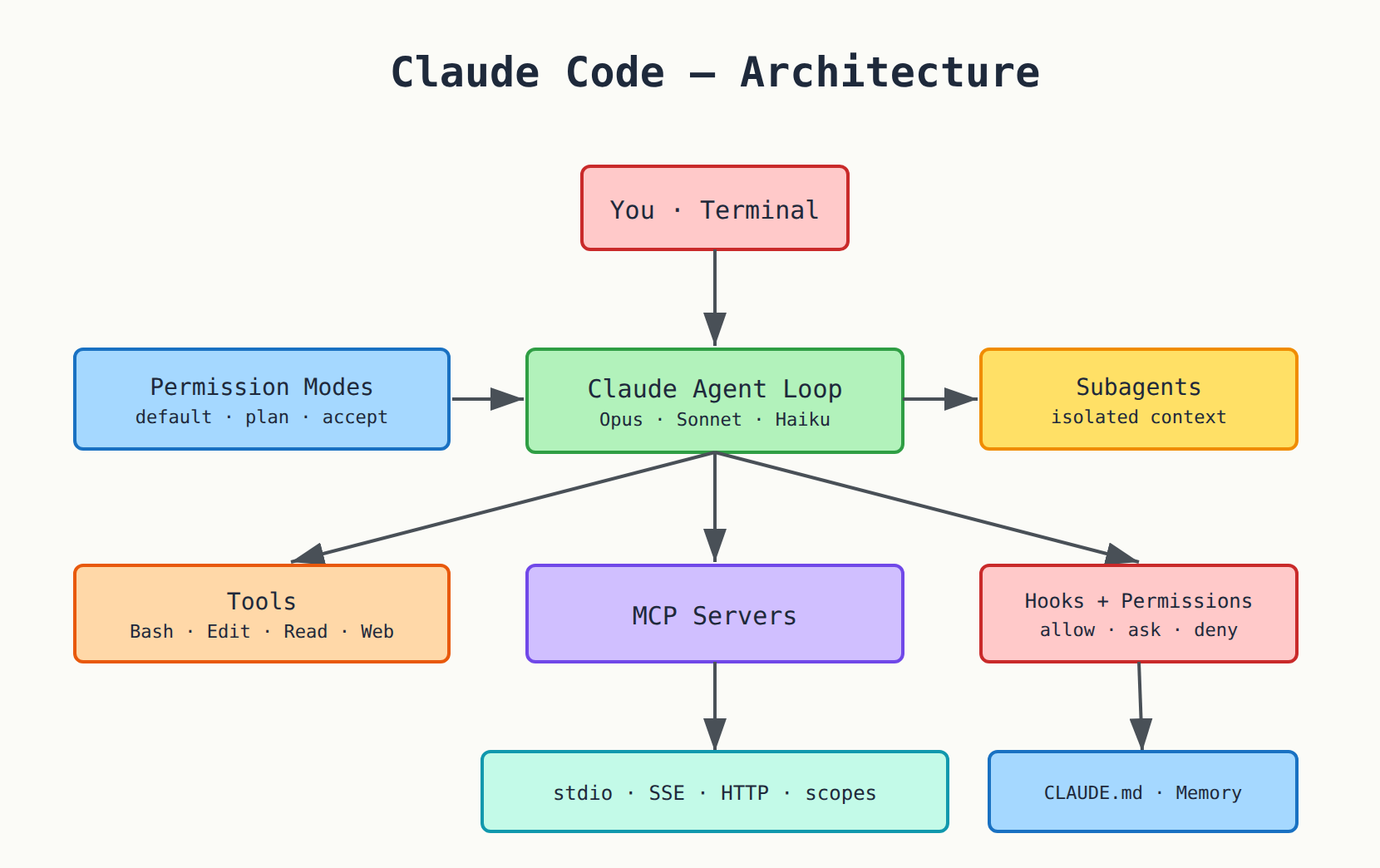
Look at the diagram above. You're on top, talking to the Agent Loop — that's the heart. The loop thinks, decides to use a tool, runs it, sees the result, thinks again… until the task is done. On the flanks: permissions guard every step, and subagents wait in case the task grows. Below: the tools, MCP, and memory (CLAUDE.md). Everything in this article is just a zoom-in on each box of that diagram.
Section3. Installation — From Zero to Your First Session
Let's start right. You've got several methods, and they all install the same binary in the end.
# macOS / Linux / WSL — the recommended native installer
curl-fsSLhttps://claude.ai/install.sh|bash

# Windows PowerShell
irmhttps://claude.ai/install.ps1|iex

# Homebrew (does NOT auto-update)
brewinstall--caskclaude-code

# Windows via WinGet
wingetinstallAnthropic.ClaudeCode

# npm — needs Node.js 22+ (installs the same native binary)
npminstall-g@anthropic-ai/claude-code
Note: the native installer auto-updates itself in the background. Homebrew, WinGet, and npm require manual updates. And never use
sudo npm install -g— it causes permission problems.
After installing, confirm everything's fine:
Authentication
The moment you type claude, it asks you to sign in. Claude Code needs a Pro, Max, Team, Enterprise, or Console account — the free claude.ai plan does not grant access. You have a few paths:
- Subscription (Pro/Max): type
claude, the browser opens, sign in, done. - API key: if
ANTHROPIC_API_KEYis set in your environment, Claude asks once to approve it instead of opening a browser — handy for servers. - Enterprise: connect it to Amazon Bedrock, Google Vertex AI, or Microsoft Foundry.
- CI/scripts:
claude setup-tokenmints a long-lived OAuth token for automation.
Pro tip:
claude --versionandclaude doctorare the first things to run if something feels off.doctorreports install and settings problems without breaking anything.
Section4. Your First Session — And the Most Important Idea: Permission Modes
Here's what sets Claude Code apart from any chatbot. You don't let the agent do whatever it wants — you set the trust level. That's controlled by Permission Modes, and you cycle them with one press: Shift+Tab.
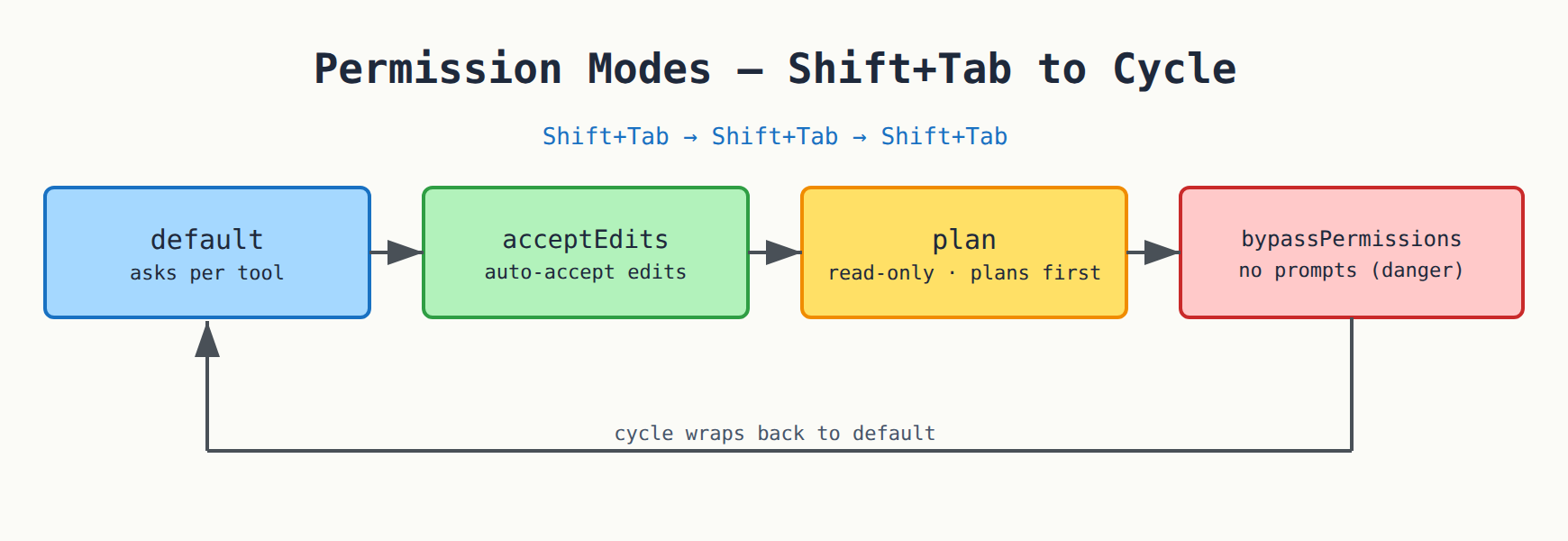
| Mode | What it does | When to use |
|---|---|---|
| default | Asks the first time it uses each tool | The safe start — while you're still learning the project |
| acceptEdits | Auto-accepts file edits (still asks on risky shell commands) | When you're confident and want to move fast |
| plan | read-only — it plans and explains, changes nothing until you approve | When you want to grasp the scope first, zero risk |
| bypassPermissions | No questions — executes everything | Danger! Only in a sandbox or CI when you're 100% sure |
Plan Mode — I Love It, and Here's Why
You might say: "I'm scared the agent will change something wrong in important code." Totally reasonable. That's why there's Plan Mode. In it, Claude touches no file — it reads, analyzes, and hands you a plan: "I'll edit these files, add this function, run this test." You read the plan, approve if you like it, tweak if you don't. You watch the movie before it happens. That's the mode I use when entering a new codebase or a sensitive task.
You cycle through all of them with Shift+Tab — press after press it rotates the modes. Try it from your first session and you'll feel the difference.
Section5. Slash Commands — Your Control Panel
The session isn't just a conversation — it's a full control panel. Every command starts with /. I won't list them all here (that's the cheat sheet's job), but let's taste the groups:
Session & conversation
/clear— start a fresh conversation (keeps project memory). Clean context = better results./compact— compress a long conversation into a summary to free context without losing the thread./resume— go back to a past conversation, and/rewind— roll code and conversation back to an earlier checkpoint (your magic undo)./context— show where your context window is going, what's taking up space.
Work & review
/init— generate aCLAUDE.mdfor the project (more on that soon)./diff— show uncommitted changes./code-review— review your diff for bugs and cleanups./security-review— scan for vulnerabilities./simplify— cleanup only, no bug hunting./agents— manage subagents (the big topic coming up)./mcp— manage MCP servers./hooks— view your hook configurations.
Bundled skills
Claude Code ships with ready-made skills like /plan, /debug, /deep-research (searches the web and returns a cited report), /loop (repeat a prompt on an interval), and /goal (keep working until a condition is met). These aren't plain commands — they're whole workflows wrapped up.
Pro tip: type
/alone and let it filter — you'll see every available command with its name and description. Faster than any documentation when you forget one.
Section6. Delegation & Subagents — The Heart of It ★
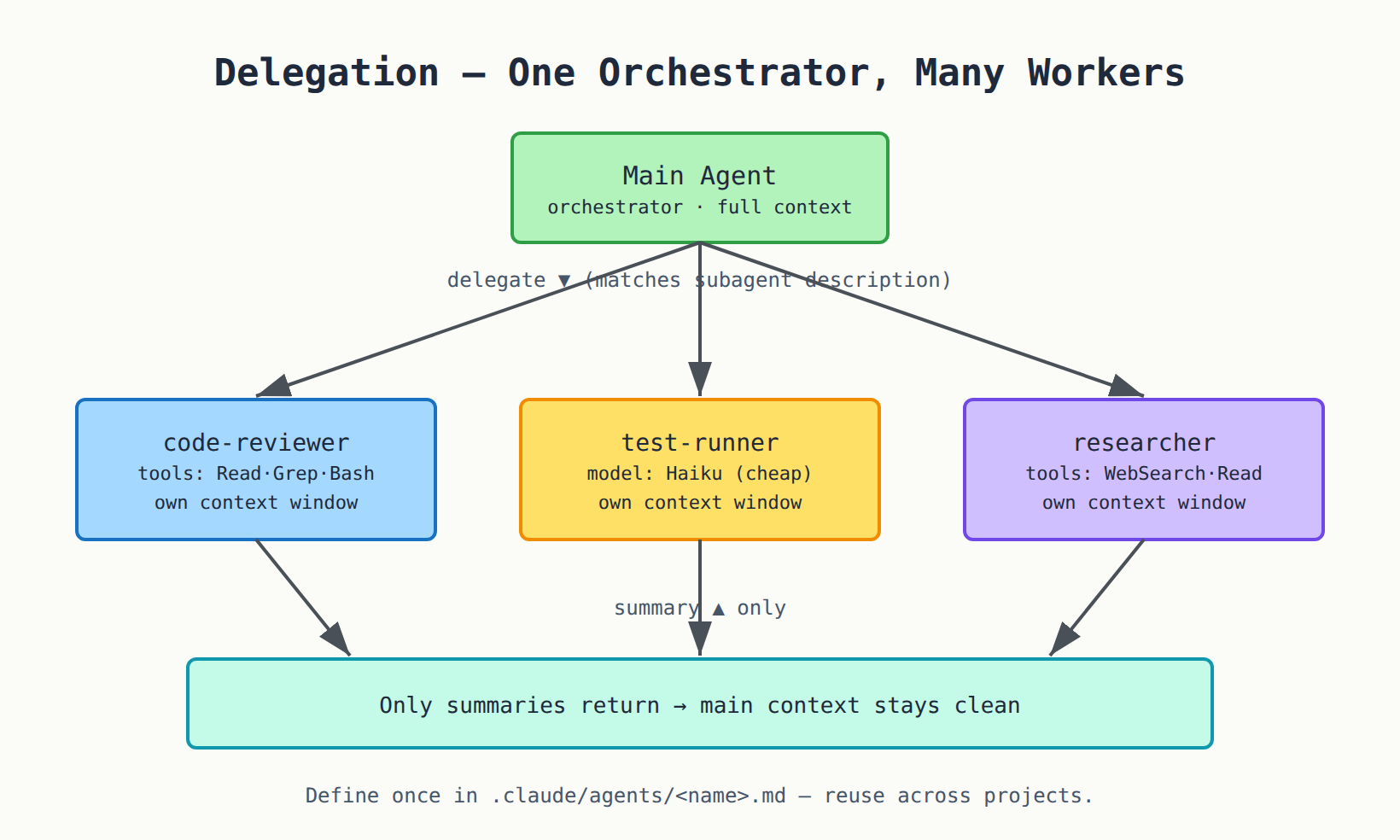
Now the most important part, the one that lets Claude Code work on big projects without "getting lost." You might ask: "Isn't one agent enough?" It is — until the task grows. Then something called context pollution kicks in: the agent gets muddled because its context filled with search results, logs, and files it'll never revisit. The fix? Delegation.
The idea in one sentence
The main agent is the orchestrator. When a big sub-task comes up — "search the whole codebase for every use of this function" — instead of doing it itself and cluttering its mind, it delegates to a subagent. That subagent works in a completely separate context window, finishes, and returns only the summary — not all the junk it found along the way. Result: the main context stays clean, and the agent stays focused.
How does it decide to delegate?
Here's the elegant bit: you define a subagent with a description, and Claude reads that description and decides on its own when to use it. Or you force it: "Use the code-reviewer subagent to check my changes."
You define subagents in files:
- Project-level:
.claude/agents/<name>.md— shared with the team via git. - Personal:
~/.claude/agents/<name>.md— travels with you across projects.
Each file has simple frontmatter:
---
name: code-reviewer
description: Expert code review specialist. Use PROACTIVELY after writing or changing code.
tools: Read, Grep, Glob, Bash
model: sonnet
---
You are a senior code reviewer. When invoked: run git diff, focus on changed files,
review for readability, bugs, and security. Give feedback grouped by priority.
See the fields? name is its name, description (the most important — Claude uses it to know when to call it, so write it well), tools (allowed tools — omit it and it inherits all), and model (set it to haiku for cheap tasks, or sonnet/opus, or inherit).
The real payoff
- Preserves context — exploration happens away from your main conversation.
- Enforces constraints — you can restrict a subagent to read-only, for example.
- Saves money — route simple tasks to cheap, fast Haiku.
- Reusable — define once, use across all your projects.
And more: Background Agents
Subagents work within a single session. But if you want to run many independent sessions in parallel and monitor them from one place, there's claude agents (a dashboard for background sessions) and --bg to launch an agent in the background. And if you're building something programmatic, the Claude Agent SDK (TypeScript and Python) gives you the same delegation power inside your own code.
Section7. Your Own Commands — Custom Commands & Skills
You might say: "I send the same instructions every day, I'm tired of typing them." Then don't. Make it a skill once, and call it with /.
The idea: create a markdown file, and its filename becomes the command name. .claude/commands/deploy.md becomes /deploy. (Newer skills live at .claude/skills/deploy/SKILL.md and do the same thing — except their body loads only when needed, so they're cheap on context.)
A practical example — a command that commits:
---
description: Create a git commit
argument-hint: [message]
allowed-tools: Bash(git add:*), Bash(git commit:*)
model: claude-haiku-4-5
---
## Context
- Current status: !`git status`
- Current diff: !`git diff HEAD`
## Task
Create a single commit with message: $ARGUMENTS
Note three magic things in the body:
$ARGUMENTS— replaced by whatever you typed after the command (and$1,$2for positional args).!before a command — runs it and injects its output into the context (like!git status`` above). The tool must be inallowed-tools, of course.@path/file— embeds an entire file's contents.
And you can organize them in folders: /frontend:lint, /backend:deploy. The nicest part: a skill can be invoked by Claude itself when it finds it relevant — you don't have to.
Section8. Memory — CLAUDE.md and How Claude "Remembers"
You might say: "Do I have to explain the project from scratch every new session?" Not at all. That's what CLAUDE.md is for.
This file is persistent instructions loaded automatically at the start of every session. You write: "This project uses React 19 and TypeScript, tests run with Vitest, don't touch the legacy/ folder." And Claude follows it. Best of all, there's a hierarchy that stacks:
- Enterprise (managed) settings — company-wide.
~/.claude/CLAUDE.md— yours, applies across all your projects../CLAUDE.md— the project's, shared with the team via git../CLAUDE.local.md— personal, not committed.
Useful commands:
/init— auto-generates a firstCLAUDE.mdfor the project./memory— opens memory files for editing.#at the start of a line — type something you want Claude to remember, and it appends it to memory instantly.@path/to/file.mdinside CLAUDE.md — imports another file (up to 5 hops).
There's also auto-memory: Claude writes notes to itself in ~/.claude/projects/<project>/memory/, and they survive even after /compact. So it learns from your corrections.
Pro tip: keep
CLAUDE.mdshort and focused — facts and rules, not essays. A long file drowns the important parts.
All of this lives under settings.json — which has its own hierarchy (managed → command-line → local → project → user) and holds model, permissions, env, hooks, and more.
Section9. Hooks — Deterministic Control, Not Pleading
Let me show you the difference. If you write "please don't delete files" in the prompt — that's a plea, and the model may or may not comply. But if you make a hook — that's a deterministic law enforced outside the model, no negotiation.
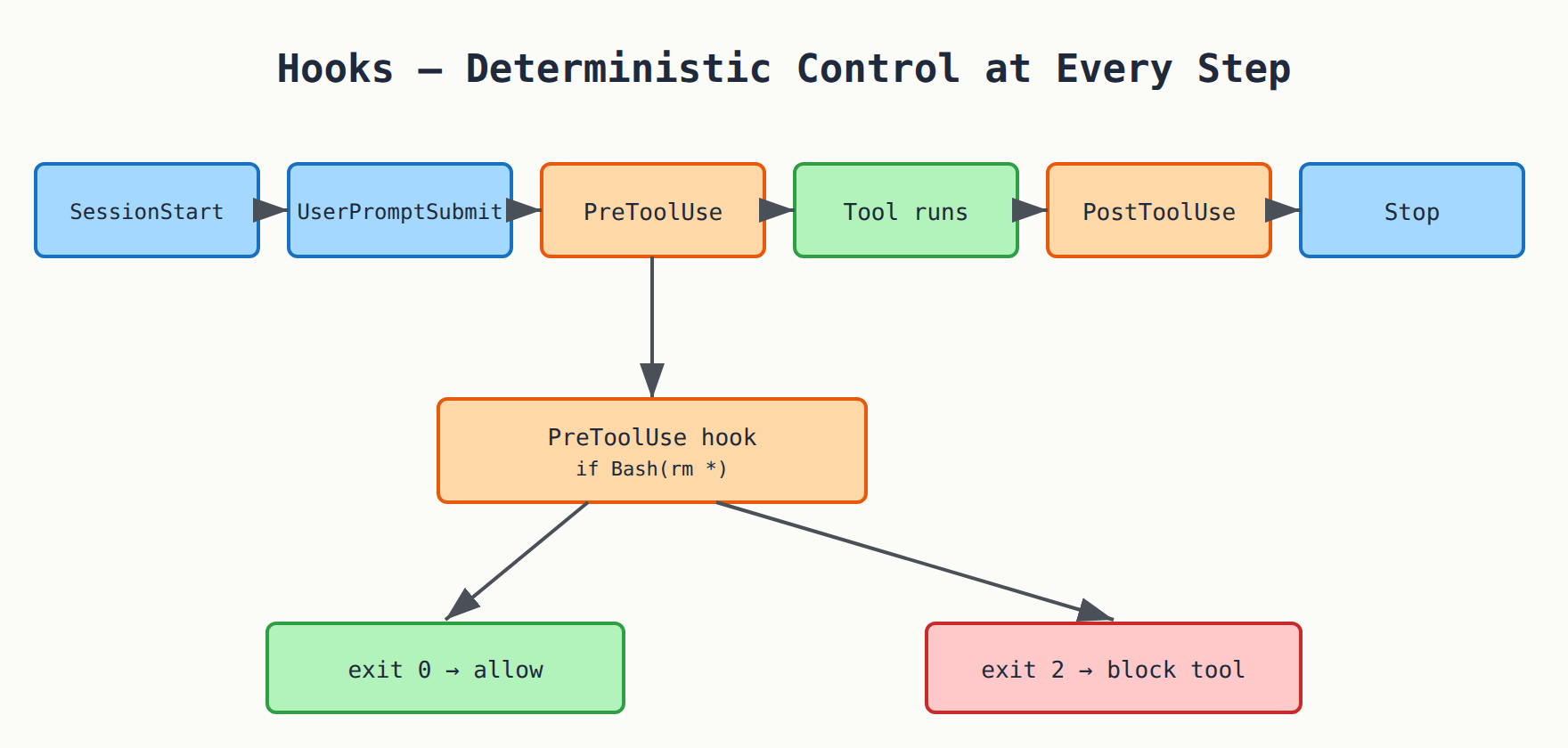
Hooks are scripts (or HTTP calls) that run at specific lifecycle events. The key ones:
- SessionStart — as the session begins (setup, environment checks).
- UserPromptSubmit — before Claude sees your prompt.
- PreToolUse — before any tool runs — and here you can allow or block.
- PostToolUse — after the tool finishes.
- Stop — when Claude finishes its reply.
- SubagentStart / SubagentStop — around subagents.
- PreCompact / SessionEnd — before compaction and at session end.
You put them in settings.json. Example: a hook that blocks any dangerous rm:
{
  "hooks": {
    "PreToolUse": [
      { "matcher": "Bash",
        "hooks": [
          { "type": "command",
            "if": "Bash(rm *)",
            "command": "${CLAUDE_PROJECT_DIR}/.claude/hooks/block-rm.sh",
            "args": [] }
        ]
      }
    ]
  }
}
The script itself controls via its exit code: return 0 means fine, return 2 means block (and the stderr message goes back to Claude so it understands why). Or it prints JSON with a permissionDecision of allow, deny, or ask.
You might say: "Isn't that a lot?" That's the difference between an agent you trust in production and one that might do something you didn't want in another. Hooks are the seatbelt.
Section10. MCP — Connect It to Anything
The Model Context Protocol (MCP) is the unified protocol that lets Claude Code talk to the outside world — GitHub, databases, Slack, any service. Instead of each tool building a custom integration, everyone speaks MCP.
You add a server with one command:
# a server that runs over stdio
claudemcpaddgithub--npx-y@modelcontextprotocol/server-github

# a server over HTTP or SSE
claudemcpadd--transporthttplinearhttps://mcp.linear.app/mcp

# from ready JSON, or from your Claude Desktop config
claudemcpadd-jsonweather'{"command":"...","args":["..."]}'
claudemcpadd-from-claude-desktop

# view and manage
claudemcplist
claudemcpgetgithub
claudemcpremovegithub
There are scopes that control who sees the server:
- local (default) — this project only.
- project — shared with the team via a
.mcp.jsonin the repo. - user — all your projects.
A .mcp.json looks like:
{
  "mcpServers": {
    "github": {
      "command": "npx",
      "args": ["-y", "@modelcontextprotocol/server-github"],
      "env": { "GITHUB_TOKEN": "..." }
    }
  }
}
Inside the session, /mcp shows your servers and their status and handles OAuth login. You can reference a server's resources in a prompt with @server:resource, and some servers add their own slash commands.
Section11. Permissions in Detail — Allow / Ask / Deny
We covered modes. Now the fine print. In settings.json under permissions you have three lists: allow, ask, and deny. The syntax is very flexible:
{
  "permissions": {
    "allow": [
      "Bash(npm run test:*)",
      "Read(./src/**)",
      "Edit(./src/**)"
    ],
    "ask": [
      "Bash(git push:*)"
    ],
    "deny": [
      "Read(./.env)",
      "Read(./secrets/**)",
      "Bash(rm *)"
    ]
  }
}
Notice:
Bash(npm run test:*)— a prefix, so anynpm run test...is allowed.Read(./src/**)andEdit(./src/**)— glob patterns.denywins — you can block Claude from reading.envorsecrets/entirely, even if your mode is lenient.- MCP tools are written
mcp__server__tool.
/permissions opens a UI to manage these rules, and defaultMode sets which mode a session starts in. The result: you tailor a security suit that fits your project.
Section12. Headless Mode — Claude in Scripts and CI
Claude Code isn't only an interactive session — it's also a programmatic tool. The -p (or --print) flag makes it run, print, and exit:
# a quick question that exits with the result
claude-p"summarize the last 10 commits"

# structured JSON output (result, cost, session_id...)
claude-p"list all TODOs in this repo"--output-formatjson

# pipe — feed it input from another command
caterror.log|claude-p"what's the root cause?"

# streaming output for integrations
claude-p"..."--output-formatstream-json
And for safe automation you have guardrails:
--max-turns N— cap the number of steps.--max-budget-usd X— stop if cost exceeds this amount.--allowedToolsand--permission-mode— control its privileges.claude setup-token— long-lived auth for CI.
This opens the door to CI/CD pipelines, git hooks, and cron jobs. And to build on it seriously, the Claude Agent SDK wraps all of this in a TypeScript/Python library.
Section13. Keyboard Shortcuts & Input — Pro Speed
There are prefixes at the start of a line that save you a lot of time:
/— a slash command or skill.!— run a shell command directly without leaving.@— mention a file (with path autocomplete).#— add something to memory.
And the key shortcuts:
| Key | What it does |
|---|---|
Shift+Tab | cycle permission modes |
Esc | interrupt Claude or close a dialog |
Esc Esc | open the rewind/checkpoints menu |
Ctrl+C / Ctrl+D | cancel / exit |
Ctrl+L | clear screen (keeps the session) |
Ctrl+R | search history / verbose |
Ctrl+V | paste an image (Claude analyzes it!) |
For multiline: \ then Enter, or Option/Alt+Enter. And you can enable Vim mode from /config if you love hjkl.
Section14. Comparison — Claude Code Among the Competitors
A fair question: why Claude Code and not Copilot CLI or OpenCode? Let me be fair and put them side by side:
| Dimension | Claude Code | GitHub Copilot CLI | OpenCode |
|---|---|---|---|
| Maker | Anthropic | GitHub | Community (open source) |
| Default model | Claude (Opus/Sonnet/Haiku) | Claude Sonnet 4.5 | Configurable |
| Model choice | Claude family + Bedrock/Vertex/Foundry | Multi (Claude, GPT-5) | Any provider |
| Delegation/Subagents | ✅ .claude/agents/ + /agents | ✅ subagents + rubber-duck | ✅ primary + sub |
| Custom commands | ✅ skills / .claude/commands/ | ✅ skills | ✅ |
| Hooks | ✅ rich lifecycle | ✅ 9 types | ✅ |
| MCP | ✅ stdio/SSE/HTTP + scopes | ✅ (+built-in GitHub MCP) | ✅ |
| Permission modes | ✅ default/accept/plan/bypass | ✅ Allow/Ask/Deny | ✅ |
| Checkpoints/Rewind | ✅ /rewind, Esc Esc | ✅ /rewind | partial |
| Headless / SDK | ✅ -p + Agent SDK | ✅ -p | ✅ |
| Background agents | ✅ claude agents, --bg | ✅ /delegate cloud | ❌ |
| IDE extensions | ✅ VS Code + JetBrains | ✅ | ✅ |
| Cost | Pro $20 / Max / API | Copilot sub $10–39 | Free + your keys |
| Source | Binary (proprietary) | Proprietary (MIT-licensed CLI) | Open source |
Where Claude Code shines
- Depth of delegation and subagents — a clean model that keeps it focused on big projects.
- The Claude model family — Opus on genuinely hard tasks really matters.
- Rich hooks and permissions — production-grade deterministic control.
- Agent SDK — if you want to build your product on top of it.
- Runs everywhere — terminal, IDE, Desktop, web.
Honestly: if your codebase is large and complex and you want an agent that stays focused, or you like building automation on top of the tool — Claude Code is a very strong choice. If you need out-of-the-box GitHub integration with no setup, Copilot CLI has an edge there. And if open source is a requirement, OpenCode.
Section15. The Verdict — And You Off to Try It
So, we went from zero — the first curl install — to knowing how to delegate whole tasks to subagents that work safely on their own, place hooks that guard production, connect the tool to any service over MCP, and run it in CI without sitting in front of it.
The big idea to walk away with: Claude Code doesn't replace you — it levels you up. You've become the orchestrator. You set the intent, tailor the permissions, delegate the work, and review the result. The agent does the heavy, repetitive lifting while you focus on decisions.
- Beginner? Start with
claudeandplanmode, and let it explain the project before changing anything. - Intermediate? Write a good
CLAUDE.md, define a skill or two for your recurring work, and learnShift+Tab. - Pro? Define specialized subagents, add hooks for safety, and build automation with
-pand the Agent SDK.
The question I'll leave you with: if you had a talented junior engineer willing to sit next to you in the terminal, work for hours, never get bored, and with you fully holding the safety reins — what's stopping you from trying it right now? 🚀
Comments